

Admin
 Jan 21, 2025
 Help
HelpTap here for a step-by-step video guide on how to select your products!
https://youtu.be/lTlanUI3InA
Open the MilkUp Vendor application on your mobile device and log in.
From the main menu, select the Profile option. This will open the profile page.
On the profile page, find and click on the option named Product Management or Product List.
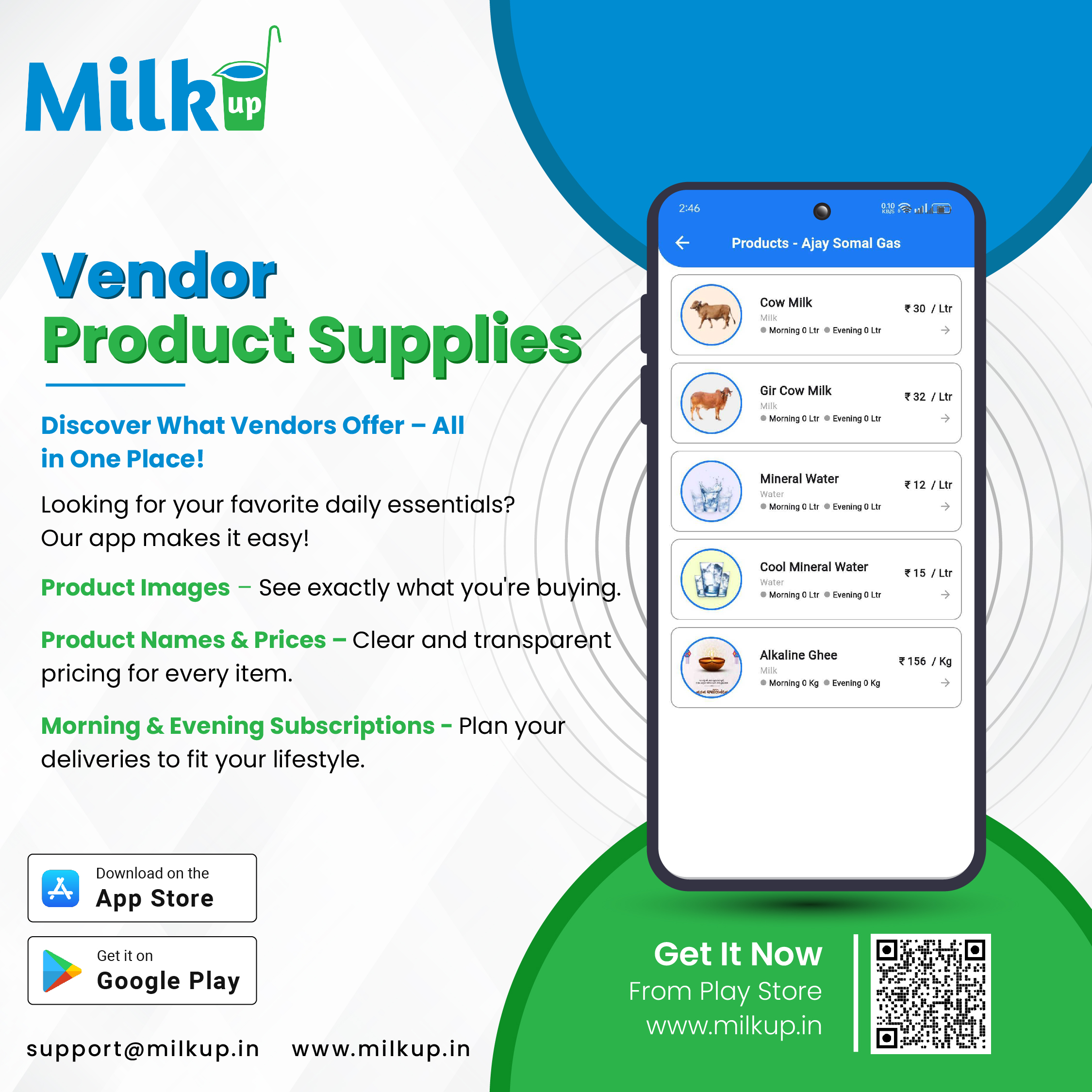
A product list will open, displaying your registered products. Click on the toggle or checkbox next to the product you want to select.
Check the quantity, price, and other details of the selected product. Edit or update if necessary.
After selection, tap the Save button. Your selected product is now ready for orders and delivery.
Click here to Install

Milkup Vendor Application | https://play.google.com/store/apps/details?id=com.softwagon.milkup.vendor
Milkup Delivery Boy Application | https://play.google.com/store/apps/details?id=com.softwagon.milkup.deliveryboy
#DairySolutions #SmartCustomerCare #CustomerFirst #EffortlessBilling
#SubscriptionEase #MilkDeliveryMadeEasy #CustomerSatisfaction #SeamlessService #DairyMilk #MilkBusiness #DairyManagement #FarmToDoor #language #softwagon #softwagontech
Book a demo and our team will walk you through subscriptions, daily deliveries and monthly billing in the MilkUp app.
Powered by softwagon technologies Pvt. Ltd. ©2026 All Rights Reserved.


