

Admin
 Dec 26, 2024
 Milk
MilkSteps to Follow:
The customer will be removed from your list and will no longer appear in your records.
Open the Application:
Launch the Milkup Vendor Application and log in to your account.
Go to the Profile Menu:
From the home screen, click on the Profile Menu option.
Select the Customer List:
In the profile menu, select the Customers option.
You will see a list of all registered customers.
Choose the Customer:
Click on the name or details of the customer you want to delete.
Find the Delete Option:
The customer details screen will open, where you will find a Delete Customer button or icon.
Confirm the Deletion:
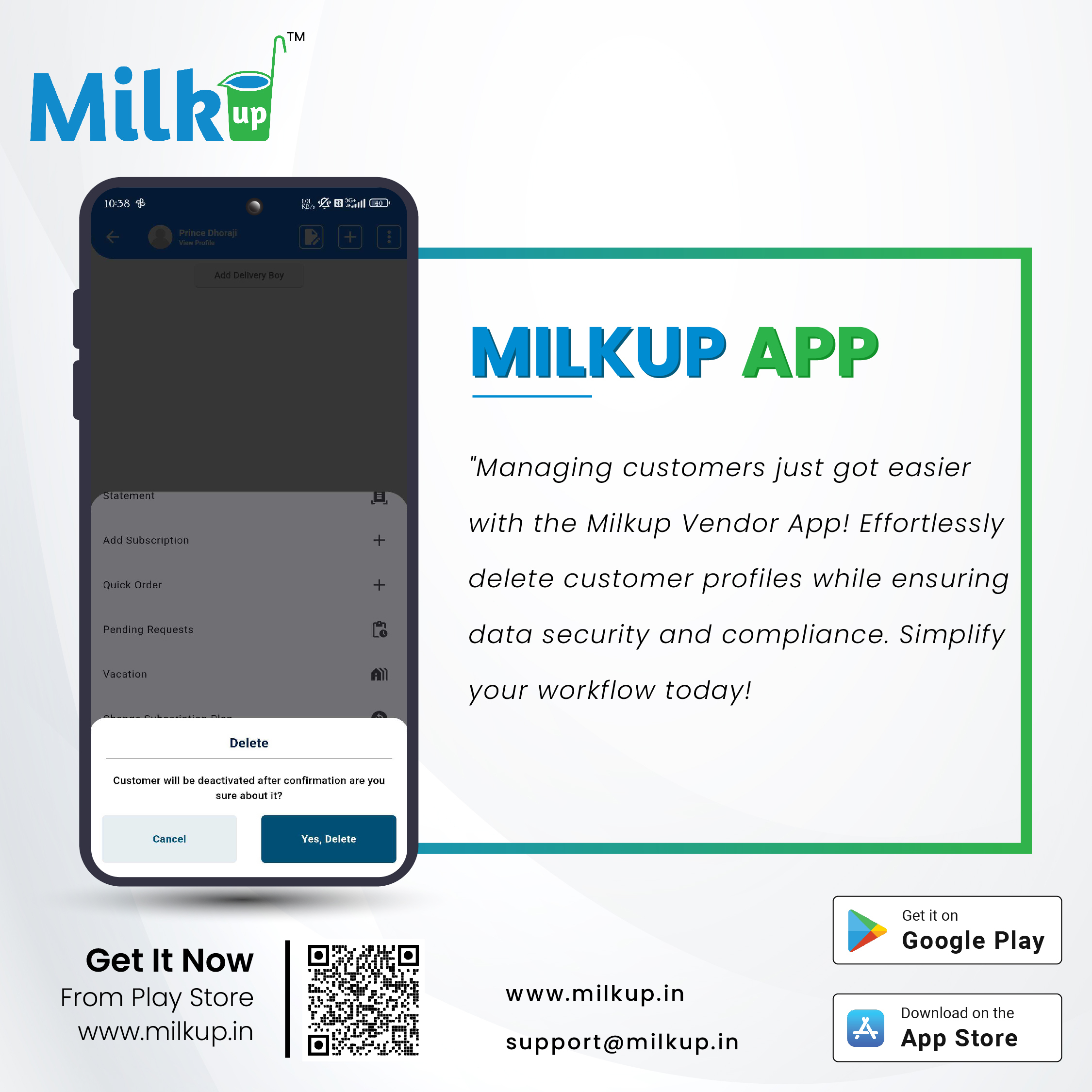
After clicking delete, a confirmation pop-up will appear asking if you are sure you want to delete the customer.
Click Yes/Delete to proceed.
Customer Deleted Successfully:
Click here to Install

Milkup Vendor Application | https://play.google.com/store/apps/details?id=com.softwagon.milkup.vendor
Milkup Delivery Boy Application | https://play.google.com/store/apps/details?id=com.softwagon.milkup.deliveryboy
#DairySolutions #SmartCustomerCare #CustomerFirst #EffortlessBilling
#SubscriptionEase #MilkDeliveryMadeEasy #CustomerSatisfaction #SeamlessService #DairyMilk #MilkBusiness #DairyManagement #FarmToDoor #language #softwagon #softwagontech
Book a demo and our team will walk you through subscriptions, daily deliveries and monthly billing in the MilkUp app.
Powered by softwagon technologies Pvt. Ltd. ©2026 All Rights Reserved.


