

Admin
 Feb 3, 2025
 Help
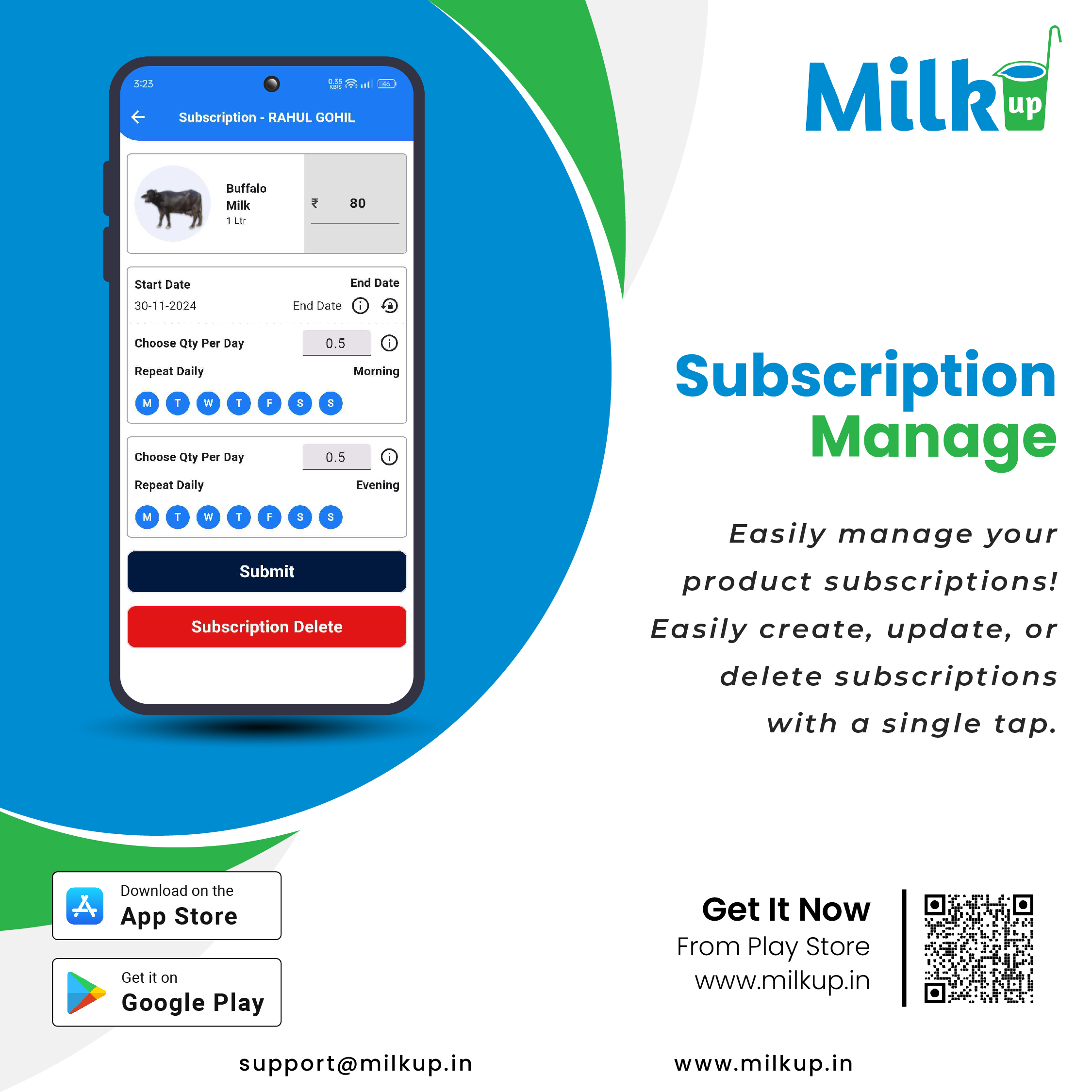
HelpOpen the MilkUp application and go to the "Customer Menu" tab. Here, you will see a list of all your customers.
Find the customer you want to add daily activities for. Click on the "S" button next to their name.
The "S" button is used to manage the customer's daily subscription.
For a new daily activity:
To update the daily activity: Make the necessary changes to the quantity, product, or delivery days in the existing record.
Once your changes are complete, click on the "Save" or "Add" button. This will successfully save your daily subscription.
Click here to Install

Milkup Vendor Application | https://play.google.com/store/apps/details?id=com.softwagon.milkup.vendor
Milkup Delivery Boy Application | https://play.google.com/store/apps/details?id=com.softwagon.milkup.deliveryboy
#DairySolutions #SmartCustomerCare #CustomerFirst #EffortlessBilling
#SubscriptionEase #MilkDeliveryMadeEasy #CustomerSatisfaction #SeamlessService #DairyMilk #MilkBusiness #DairyManagement #FarmToDoor #language #softwagon #softwagontech
Book a demo and our team will walk you through subscriptions, daily deliveries and monthly billing in the MilkUp app.
Powered by softwagon technologies Pvt. Ltd. ©2026 All Rights Reserved.


